An RSVP website for your wedding or any event
Describe your RSVP form and Siter AI builds it. Guests say if they are coming and how many, and every reply comes straight to you.
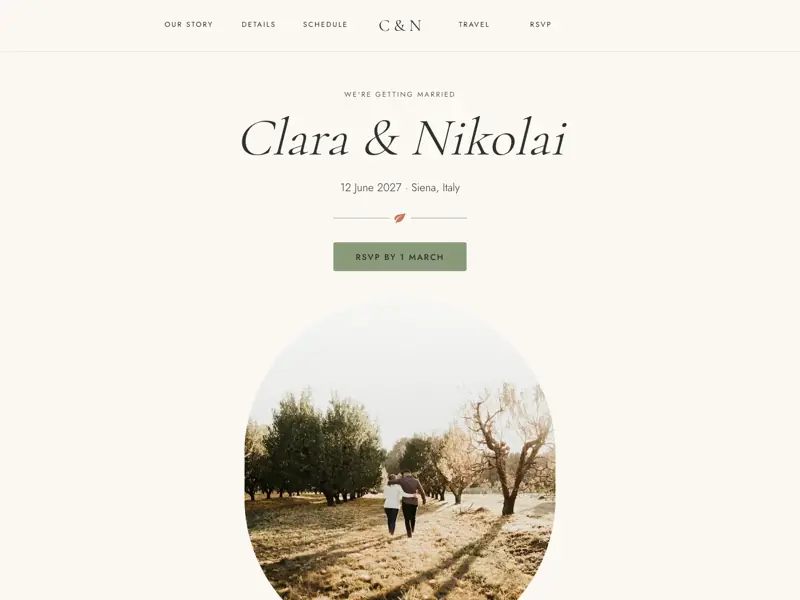
An RSVP form that looks like your page.
-
Takes your fonts and colors
The RSVP form is part of your page, so it wears your brand colors, text color, background and corner radius.
-
Replies come to you
When a guest sends a reply, it is saved in your website's Form entries and emailed to you.
2 places the replies land
- Form entries
- Your email
-
Fits a wedding or any event
Put it on a wedding page, a birthday, a baby shower or a dinner, right where guests read the details.
Describe it, then build it.
Place an App, say what guests are asked, and Siter AI writes the RSVP form, tests it and shows it on your canvas.
What should the app do?
Say it in a sentence, with what guests answer, how many can come and what you want to know before they send.
Or start from one of these
The starters cover calculators, a quiz and more. An RSVP is not on the list, so you describe it in the box above.
Build
Siter AI writes the RSVP form and tests it, fixing an error if it finds one, while you watch the progress.
Try it on the canvas
The form runs in its own sandbox, apart from your website. Double-click it to send yourself a reply.
What your guest does.
-
Says if they are coming
Two buttons, such as yes or no, in your own words, right on the event page.
-
Says how many
For example one to four guests, with a meal picked for each one.
-
Mentions food needs
A note for allergies or anything else you want to know before the day.
-
Sends the reply
A name and an email, then Send. A thank-you can repeat their answer with the date, time and place.
From idea to live in three steps.
-
Place an App
Pick App in the left toolbar and put it on the page where guests should answer.
-
Describe your RSVP form
Write what guests are asked, such as yes or no, how many are coming and any meals, and press Build.
-
Publish and send a test reply
Publish the page, send yourself a reply, and check that it arrives in Form entries and your email.
Frequently asked.
How do I make an RSVP website?
Build your event page, place an App from the editor's left toolbar and describe the RSVP form. Siter AI builds it to your description and tests it, and you publish the page like any other. Start from a wedding template if you like, or build the page yourself.
How do I add a wedding RSVP to my website?
Place the App on your wedding page and describe what you want to ask your guests. You can add a countdown on the same page, so guests see the day coming as they reply.
Where do the RSVP replies go?
To Form entries and to your email. When a guest sends a reply, it is saved in your website's Form entries, named after the app, and emailed to you.
What can the RSVP form ask?
Whatever you describe. For example: yes or no, how many guests with a meal for each, a note for food needs, a name and an email, and a reply-by date. The reply-by date is text on the form and does not close it.
Can I use a plain form instead?
The RSVP form is one use of Siter Apps, small working tools that Siter AI builds from a description. If you only need a plain contact form, see website forms. For bookings, see the booking form, and for everything else, Siter Apps.
Which plan do I need for an RSVP form?
You can build and preview an RSVP form on any plan, including Free. An app shows on your published website on paid plans, and each plan includes its own number of apps per website. See the plans.
More of what the editor does
- Custom domains Point a domain you own at the site, with HTTPS issued automatically, in every paid plan at no extra cost.
- Hosting and SSL No separate host to buy, no certificate to renew. It is part of the plan.
- HTML download Take a copy of a page and host it elsewhere. On Pro, and honest about the limits.
- Forms Design a form on the canvas and get the answers in your inbox.
- Custom fonts Upload the font files the design was made with, on every plan including free.
- Responsive design A layout for each breakpoint, custom widths included, laid out by you rather than guessed by the tool.
- SEO settings Per-page title, description and slug, plus custom meta tags in the head.
- Teams and roles Admin and Member roles on paid plans, with editor seats included and counted per website.
- Website analytics See visitors and top pages for every published site, plus sources, countries and devices on paid plans, with no cookies and no personal data.
- Animations Appear, loop and scroll motion, sticky headers, hover states and custom keyframes, set per element and previewed on the canvas.
- File hosting Upload PDFs, documents, audio and video and link to them from any button, image or line of text.
- Version history Restore any page from the last 30 days, and bring back deleted pages and websites within 14.
- Visual editor A free-form canvas with layers, auto layout, components and hover states, closer to a design tool than a block builder.
- Popups Open a popup from any button with Open overlay, or link it to a page, a section, a file, an email or a phone call.
- Countdown A live countdown to a sale, a launch or an event, and numbers that count up as visitors scroll to them.
- Tabs and marquee Tabs or a Monthly and Yearly toggle that switch parts of the page, and a strip of words or logos that runs without end.
- Apps Describe a calculator, quiz or booking request and Siter AI builds it on your page.
- Calculators A price, loan or ROI calculator or a product configurator, built from a description.
- Quiz A few questions and a result that points visitors to the right choice.
- Before and after Two photos of the same thing and a handle that reveals the change.
- Booking form Visitors pick a service, a day and a time, and the request reaches you in Form entries and email.
- Product configurator Visitors pick options, watch the price change and send their choice, built from a description.
- AI landing pages Describe a landing page and Siter AI designs it on a canvas you then edit, with a version saved before each change.
- Feedback form Visitors rate with stars, pick what they liked and add a comment, and it reaches Form entries and email.
- Poll One question, a few answers, and live totals that every visitor sees, on a Pro website.
- Custom code Head code for the whole website or one page, and a Code element for embeds on the canvas.
- Images An image library for each website with folders and Unsplash search, plus an editor that crops, rotates and adjusts.
- Integrations Zapier for form responses, reCAPTCHA, Google Analytics, Facebook Pixel, video, fonts, Figma and any embed snippet.

Let your guests answer
on the page.
Describe the RSVP form, place it on your event page like any other element, and let the replies come to you.